
What Is Wi-Fi Calling?
Wi-Fi calling lets you make voice and video calls over an internet connection. With Wi-Fi calling, you no longer have to rely only on your service provider’s cellular network; you can make calls over a Wi-Fi connection instead. This means you can make calls in places where network access is limited or nonexistent. And whenever you run into connection problems, you can easily make calls over Wi-Fi.
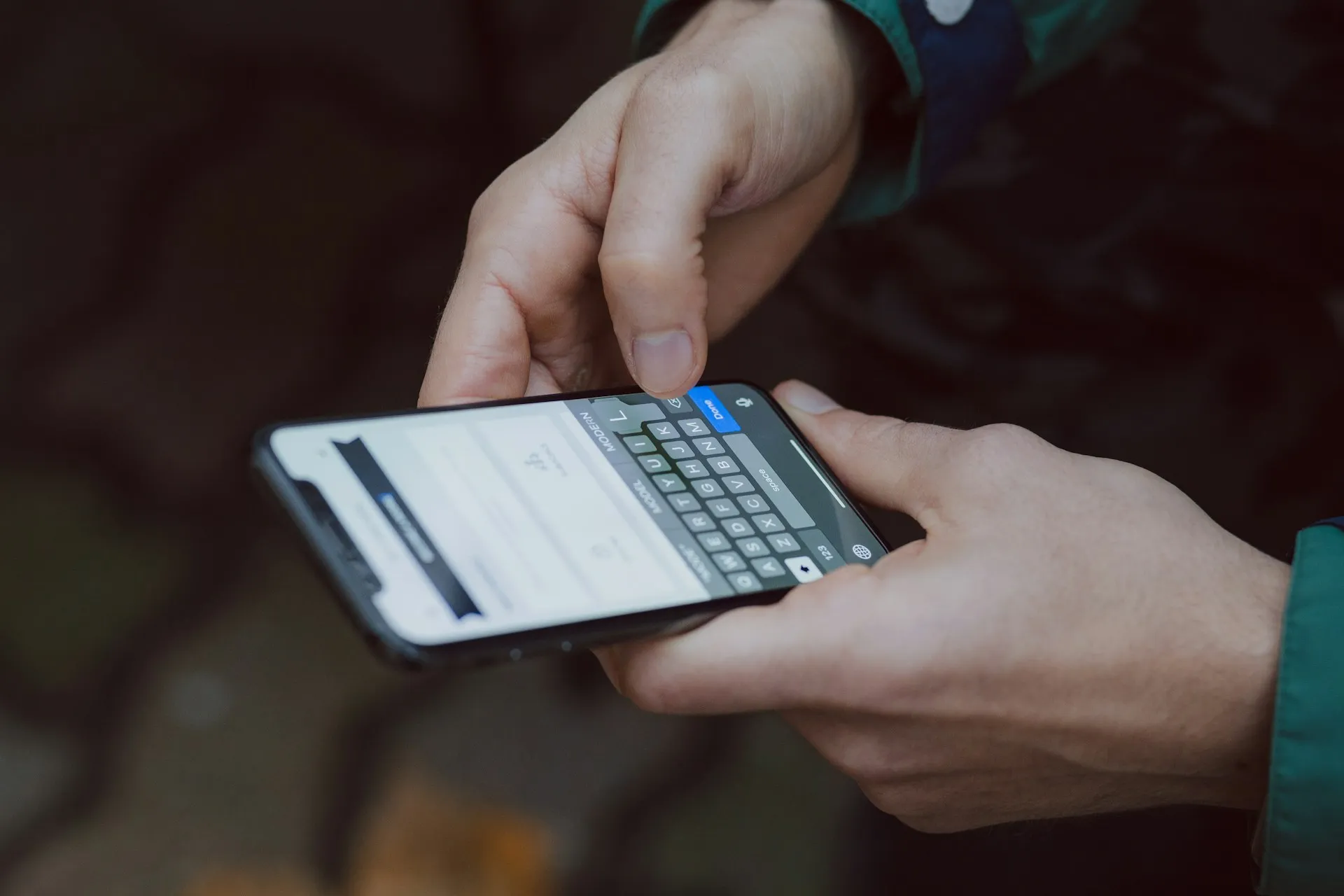
For example, your phone usually loses signal in an elevator or a parking garage because it is out of network range. In such cases, you can use Wi-Fi calling to stay in touch. The network can also become congested on days when everyone is calling each other, such as holidays, which limits network access. In such cases, you can make calls over Wi-Fi without experiencing congestion. Most smartphones support Wi-Fi calling, so it is easy to use. If you have a strong Wi-Fi signal and a weak cellular signal, you can choose to make calls over Wi-Fi automatically.
In some situations, Wi-Fi calling can be very advantageous. As we mentioned, it can be a lifesaver where your cellular signal is weak, because it lets you make good-quality phone calls over a wireless network connection, even in airplane mode. It can also help you avoid high roaming fees if you travel abroad frequently: by keeping your phone in airplane mode while abroad, you can make phone calls from anywhere with a Wi-Fi connection.
What Are the 8 Main Advantages?
Now that much of the workforce is virtual and working from anywhere, such as a cafe, restaurant, or shopping mall, is the new normal, Wi-Fi calling continues to evolve to help you communicate clearly and smoothly anywhere in the world. Since Wi-Fi is now available in so many places, such as parks and public transport, we can make calls wherever we want. And with advancing technology, you can now make calls without using cellular data. Wi-Fi calling has many advantages, so let’s take a look at them together:
- Making a call over Wi-Fi is quite simple because you don’t need to install any apps.
- It provides good service where the cellular network is weak.
- Most smartphones support it.
- Your calls will be higher quality, and your voice will sound clearer.
- As long as you have a reliable connection, your Wi-Fi calls won’t drop, which saves you time.
- It can extend your phone’s battery life.
- You can use your existing phone number without any extra login.
- Calls to international numbers are usually free or much more cost-effective.
What’s the Difference Between Cellular Data and Wi-Fi Calling?
There are many differences between Wi-Fi calling and cellular data. Wi-Fi connects you to the internet through your router, while cellular data connects you to the internet through your phone signal. Wi-Fi calls are handled via VoIP over the internet connection your Wi-Fi access point uses, rather than over the cellular network. Cellular data, on the other hand, uses your provider’s network, which is broadcast through base stations.
Wi-Fi calling lets you talk to people from remote locations. You don’t need to be near a cell tower; you only need an internet connection to make calls. You can make calls over Wi-Fi in places where cellular data fails, because cellular data cannot be used where your phone has limited or no access to the network. In places where cellular data is not available, making voice calls over Wi-Fi will also significantly improve your call quality. Cellular data can also shorten your phone’s battery life, so making calls over Wi-Fi is better for your battery health.
How Does It Work?
When you think of Wi-Fi calling, you may think of apps that let you call over the internet, since they are similar. The difference with Wi-Fi calling is that once it is enabled on your smartphone, it requires very little additional input from you. To use Wi-Fi calling, you must first enable the feature on your Android phone or iPhone.
Carriers may also choose which devices they support, so even if your phone is capable of Wi-Fi calling, your carrier may not support it. Once you have confirmed that your carrier supports Wi-Fi calling on your phone, you can activate it on your account. Whether you are enabling Wi-Fi calling on an iPhone or an Android phone, the instructions are generally similar. After setting up Wi-Fi calling, you can make calls over the wireless connection just as you would make a normal call.
How to Enable Wi-Fi Calling on iOS & Android?
How to Set Up Wi-Fi Calling on an iPhone
Total time: 2 minutes
-
Go to your device’s Settings.
-
Tap the Cellular option.
-
Tap Wi-Fi Calling and switch it on.
How to Set Up Wi-Fi Calling on an Android Phone
- Go to your device’s Settings.
- Tap Connections.
- Switch on Wi-Fi Calling.
Conclusion
Nowadays, you no longer need a device with a SIM card or cellular data to make phone calls, and as technology continues to advance at this rate, Wi-Fi calling may meet all of our needs. It makes your work easier by helping you keep in touch with employees working outside the office, especially now that remote working is common. You may also have international projects and operations where it is difficult to keep in touch with your team; with Wi-Fi calling, these difficulties disappear and an easier way of communicating awaits you.
Resources:
Analyze the content of this post with
Written by

Onur Ozgur OZKAN
Co-founder & CEO
The Hipcall team builds an all-in-one communication platform for sales and support teams, combining business phone, call centre, CRM, and helpdesk into a single workspace.
Related Posts
Call Centre Software vs Business Phone System
Call centre software manages agents and queues. A business phone system connects calls. Learn the key differences and which one your team actually needs.

History of Fax Machine - Beginner's Guide
Dive into the fascinating history of the fax machine with our beginner's guide! Learn about the evolution, impact, and legacy of this iconic communication tool.
What is Online Faxing? 4 Common Uses
Learn what online faxing is and explore its 4 common uses. Discover how cloud faxing streamlines communication, reduces costs, and keeps data secure.
Stay in the loop
Get the latest product updates, tips, and industry insights delivered to your inbox.
Try for Free